How-to
How to Download a Video Without Installing an App
6 October 2026 · 6 min read
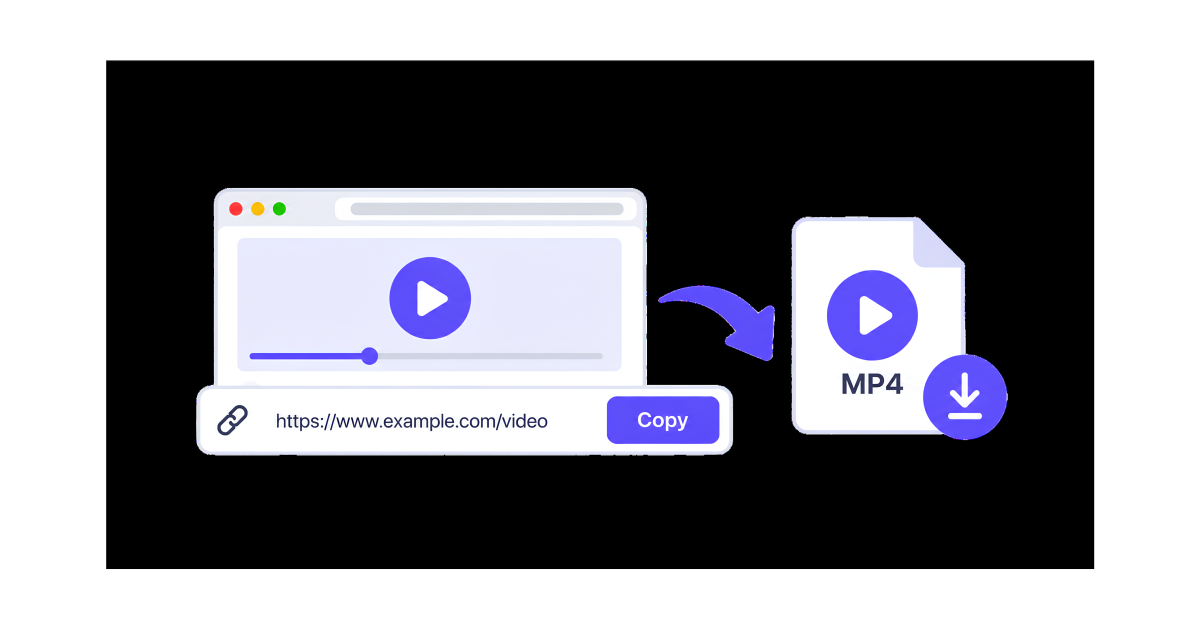
Downloading a video does not always require installing a separate application. If you have a supported video link, you can often use an online video downloader directly from your web browser.
This can be useful when you are using a phone, tablet, or computer and simply want to download a video without adding another app to your device.
In this guide, we'll explain how to download a video without installing an app using a simple browser-based workflow.
Why Download a Video Without an App?
Using an online video downloader can be convenient for several reasons.
You don't need to install another application, use additional storage, or keep a dedicated downloader updated. Instead, you can open a browser, paste a video link, and follow the available download options.
A browser-based workflow can also be useful when you only need to download a video occasionally.
What You Need
To download a video without installing an app, you generally need:
- A video link
- A web browser
- An online video downloader
- An internet connection
The basic process is simple:
Copy the link → Paste the link → Process it → Choose an available option → Download
How to Download a Video Without Installing an App
Step 1: Find the Video
First, open the website or platform where the video is available.
Find the video you want to save and open the specific video page or post.
Make sure the content is accessible and that you have permission to download or reuse it when required.
Step 2: Copy the Video Link
Once you have found the video, copy its URL.
On many platforms, you can use the Share button and select Copy link.
If you are using a computer, you can often copy the URL directly from the browser's address bar.
Make sure you copy the link to the actual video rather than a homepage, profile, or general page.
Step 3: Open an Online Video Downloader
Open SaveTheClip or another online video downloader in your browser.
Because the process happens through the browser, there is no need to install a separate video downloader app.
You can use the same basic workflow on a computer or compatible mobile browser.
Step 4: Paste the Video Link
Find the URL input field on the downloader and paste the link you copied.
Check the URL before continuing to make sure it was copied correctly.
Step 5: Process the Link
Submit the video URL and wait for the downloader to process it.
If the source and link are supported, available download options may appear.
The available options can depend on the original source and the content that can be accessed from the link.
Step 6: Choose an Available Download Option
If more than one option is available, choose the one that fits your needs.
For example, a higher-quality video may provide a clearer image, while a lower-quality option can require less storage and bandwidth.
Step 7: Download the Video
After choosing an available option, start the download.
Your browser will normally save the file to its default download location.
You can then open the downloaded file using a compatible video player.
Can You Download a Video Without Installing Anything?
Yes, when the video source is supported and accessible.
Browser-based video downloaders allow the workflow to take place online instead of requiring a dedicated application.
However, not every video or website will necessarily be supported. Private, restricted, deleted, or otherwise unavailable content may not be accessible through an online downloader.
Download Videos Without an App on Your Phone
You can use the same basic method on a smartphone.
Open the video platform, find the video, and copy its link. Then open your mobile browser and visit an online video downloader.
Paste the URL into the downloader and follow the available options.
This approach can be useful when you don't want to install another application or use additional storage on your phone.
Download Videos Without an App on a Computer
The process is just as simple on a computer.
Open the video in your browser and copy its URL. Then open the online video downloader in another browser tab.
Paste the video link, process it, and select an available download option.
The downloaded file will usually appear in your browser's Downloads folder.
What Are the Benefits of a Browser-Based Video Downloader?
Using an online video downloader instead of installing an app can have several advantages.
No App Installation
You don't need to install a dedicated downloader on your phone or computer.
No Additional Software
Everything can be handled through your existing web browser.
Works Across Devices
A browser-based workflow can be convenient when switching between a phone, tablet, or computer.
Easy Link-Based Workflow
Instead of learning a new application, you can simply copy a video link and paste it into the downloader.
Saves Device Storage
Because you don't need to install a separate downloader application, you don't have to use storage space for the app itself.
What If the Video Link Doesn't Work?
Sometimes an online video downloader may not be able to process a particular link.
If this happens, try the following:
- Copy the video link again.
- Make sure the URL points directly to the video.
- Open the link in your browser to confirm that the video is still available.
- Check your internet connection.
- Refresh the downloader page.
- Try again later if the source is temporarily unavailable.
- Make sure the content is not private or restricted.
If the source is not supported, the downloader may not be able to provide a download option.
Does Downloading Without an App Work on iPhone and Android?
A browser-based downloader can be used from a compatible mobile browser without installing a separate downloader application.
The exact download behavior can vary depending on the device, browser, operating system, and source.
If the file downloads successfully, check your device's Downloads or Files area to locate it.
How to Choose the Right Video Quality
If several quality options are available, consider what you need the video for.
Higher quality usually means a larger file. Lower quality can save storage space and data while still being suitable for basic offline viewing.
Choose the highest quality you actually need instead of automatically selecting the largest file.
Is It Safe to Download Videos Online?
When using an online video downloader, be careful about the websites and files you interact with.
Avoid downloading unknown software or browser extensions just to save a video. A browser-based workflow can eliminate the need for additional installations.
You should also only download content that you own, have permission to save, or are otherwise allowed to download.
Download Videos Without an App with SaveTheClip
SaveTheClip provides a browser-based way to work with supported video links.
Instead of installing a separate application, you can open SaveTheClip in your browser, paste a supported link, and follow the available download options.
This makes the process convenient when you want to download a video without installing an app on your device.
Final Thoughts
You don't always need a dedicated application to download a video.
With a supported video link and an online video downloader, you can use your browser to copy the link, paste it, process the source, and download an available video option.
Whether you're using a phone or computer, a browser-based workflow can be a convenient alternative to installing additional software.