How-to
How to Download Spotify Playlists
7 October 2026 · 5 min read
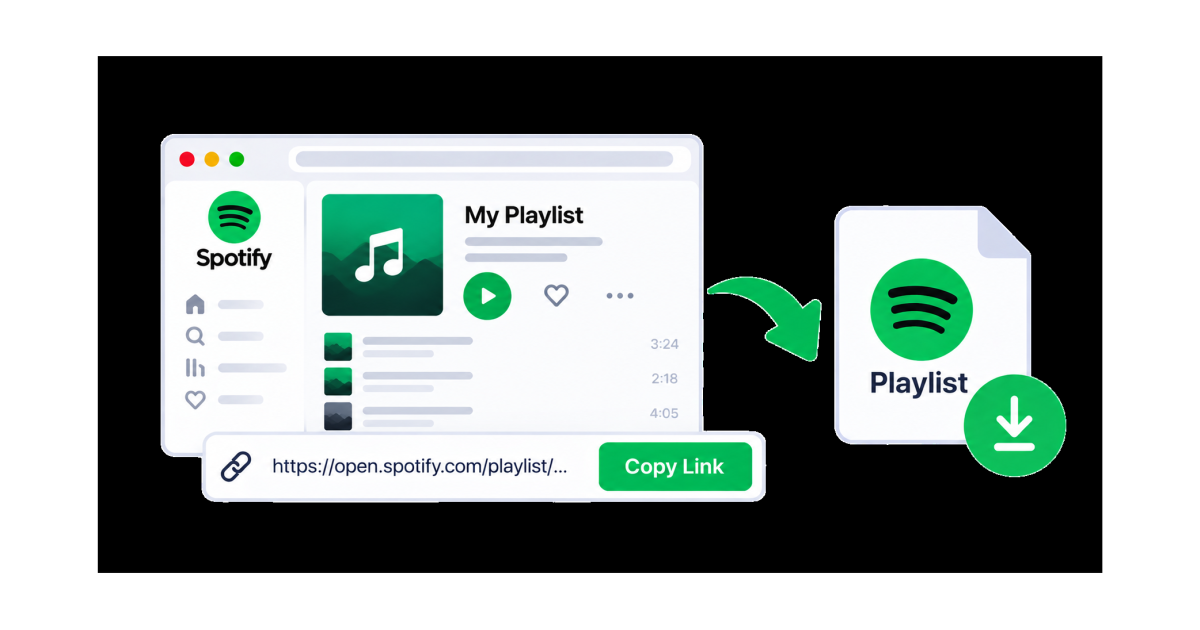
Downloading a Spotify playlist can be useful when you want to save multiple available tracks together instead of processing each song individually.
With SaveTheClip, you can start with a Spotify playlist link and use the Spotify Playlists tool to download the available tracks as a ZIP file.
In this guide, you'll learn how to copy a Spotify playlist link, use SaveTheClip, and download an available playlist.
What You Need
To download a Spotify playlist, you need:
- A Spotify playlist
- The playlist URL
- A web browser
- An internet connection
- SaveTheClip
You can use the browser-based workflow on a phone or computer.
How to Copy a Spotify Playlist Link
The first step is to copy the link to the playlist you want to download.
On Android or iPhone
- Open Spotify.
- Open the playlist you want to download.
- Tap the three-dot menu.
- Select Share.
- Tap Copy link.
The Spotify playlist URL is now copied to your clipboard.
On a Computer
- Open Spotify.
- Open the playlist.
- Click the three-dot menu next to the playlist.
- Select Share.
- Choose Copy link.
You now have the playlist link ready to use.
How to Download a Spotify Playlist
Once you have copied the Spotify playlist URL, you can use SaveTheClip.
Step 1: Open Your Spotify Playlist
Open Spotify and find the playlist you want to download.
Make sure you are sharing the playlist itself rather than an individual track.
Step 2: Copy the Playlist Link
Use Spotify's Share option and copy the playlist link.
A playlist link is different from a link to a single Spotify track.
Step 3: Open SaveTheClip
Open SaveTheClip in your browser and select the Spotify Playlists tool.
Step 4: Paste the Playlist URL
Paste the Spotify playlist link into the input field.
Check that the URL was copied correctly before submitting it.
Step 5: Process the Playlist
Submit the link and allow SaveTheClip to process the available playlist.
The available result can depend on the playlist and the source content.
Step 6: Download the Playlist
When an available result is provided, use the download option to save the playlist.
SaveTheClip's Spotify Playlists tool is designed to provide the whole playlist as a ZIP file, making it easier to keep multiple available tracks together.
Why Download a Spotify Playlist as a ZIP?
A ZIP file can be convenient when a playlist contains many tracks.
Instead of managing multiple individual downloads, the tracks can be packaged together into one file.
This can make it easier to:
- Keep a playlist organized
- Transfer multiple files together
- Store a playlist backup when permitted
- Move the downloaded files to another device
- Keep related tracks in one archive
After downloading the ZIP file, you can extract it using the built-in file manager on many computers and phones.
Download Spotify Playlists on Android
You can use SaveTheClip from an Android phone.
The basic process is:
- Open Spotify.
- Find your playlist.
- Tap Share.
- Copy the playlist link.
- Open SaveTheClip in your browser.
- Select the Spotify Playlists tool.
- Paste the URL.
- Process the playlist.
- Download the available ZIP file.
Make sure your phone has enough storage space before downloading a large playlist.
Download Spotify Playlists on iPhone
The same basic workflow can be used on iPhone.
- Open Spotify.
- Open the playlist.
- Tap the three-dot menu.
- Choose Share.
- Tap Copy link.
- Open SaveTheClip in Safari.
- Paste the Spotify playlist URL.
- Process the link.
- Download the available file.
Depending on your browser settings, the downloaded ZIP file can be accessed through the Files app.
Download Spotify Playlists on a Computer
Downloading a Spotify playlist from a computer is also straightforward.
Copy the playlist URL from Spotify, open SaveTheClip, select the Spotify Playlists tool, and paste the link.
After the playlist is processed, download the available ZIP file and save it to your computer.
You can then extract the archive and access the available audio files.
Can You Download Any Spotify Playlist?
Not necessarily.
The availability of a playlist download can depend on the playlist, its accessibility, and the source content.
Private or unavailable playlists may not produce a downloadable result.
If a playlist does not work, make sure the playlist is accessible and that you copied the correct URL.
What If the Spotify Playlist Link Does Not Work?
If your playlist link is not recognized, try these steps:
- Open the playlist again in Spotify.
- Use Spotify's Share option.
- Copy the playlist link again.
- Make sure you copied the playlist URL rather than a track URL.
- Paste the link into SaveTheClip again.
- Refresh the page and retry.
You can also test another publicly accessible playlist to determine whether the problem is specific to one playlist.
Spotify Playlist vs Spotify Track
A Spotify track link points to a single song, while a Spotify playlist link points to a collection of tracks.
If you want to download one song, use the Spotify Tracks tool.
If you want to process a complete playlist, use the Spotify Playlists tool.
Using the correct type of link helps ensure that SaveTheClip can process the content you intended to download.
Spotify Playlists as ZIP Files
SaveTheClip's Spotify Playlists tool is designed to provide the whole available playlist as a ZIP file.
A ZIP archive groups multiple files into a single downloadable package.
This is especially useful for playlists with many available tracks because you can download the collection as one archive rather than handling every file separately.
Download Spotify Playlists Without Installing an App
Because SaveTheClip works through your browser, you can start the process without installing a separate downloader application.
The basic workflow is:
Copy the playlist link → Open SaveTheClip → Paste the URL → Process the playlist → Download the available ZIP
This makes the process convenient on both mobile devices and computers.
Spotify Playlists and Copyright
Downloading a Spotify playlist does not automatically give you permission to copy, distribute, or reuse copyrighted music.
Music can be protected by copyright and may be subject to the rights of artists, labels, and other copyright holders.
Before downloading or reusing music, make sure you have the appropriate rights or permission and follow applicable laws and platform terms.
For content you own or are authorized to copy, keep those permissions in mind when creating or storing your files.
Download Spotify Playlists with SaveTheClip
SaveTheClip provides a dedicated Spotify Playlists tool for processing available Spotify playlist links.
Instead of starting with individual songs, you can begin with the playlist URL and download the available playlist as a ZIP file.
Simply copy the Spotify playlist link, paste it into SaveTheClip, process the playlist, and download the available result.
Final Thoughts
Downloading a Spotify playlist from a link can be convenient when you want to handle multiple available tracks together.
Copy the playlist link from Spotify, open SaveTheClip, paste the URL into the Spotify Playlists tool, and download the available ZIP file.
For the best experience, make sure the playlist link is correct, the content is accessible, and you have enough storage space for the downloaded files.