How-to
How to Download Videos on Android
6 October 2026 · 5 min read
How to Download Videos on Android
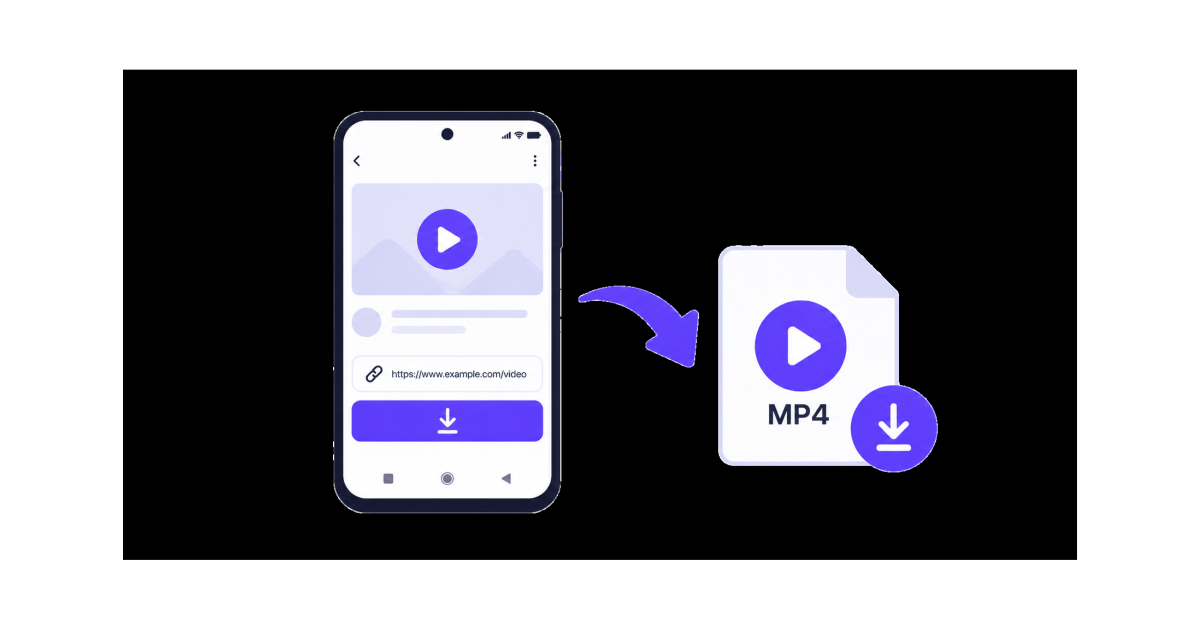
Downloading videos on Android can be simple when you use a browser-based online video downloader. Instead of installing another app, you can copy a video link, paste it into a downloader, choose an available option, and save the video directly to your phone.
Whether you are using Chrome or another Android browser, the basic process is almost the same.
What You Need
Before you start, you only need:
- An Android phone
- A web browser such as Chrome
- The link to the video you want to save
- Enough storage space on your phone
A direct link to the specific video or post is usually the best option.
How to Download Videos on Android
1. Find the Video
Open the app or website where the video is available and find the video you want to save.
Make sure you have permission to download or reuse the content.
2. Copy the Video Link
Use the platform's Share option and select Copy link.
If you are viewing the video in a browser, you can also copy the URL from the address bar.
This gives you the link you need for the download.
3. Open an Online Video Downloader
Open Chrome or another browser on your Android phone and visit an online video downloader such as SaveTheClip.
You do not necessarily need to install a separate application. A browser-based downloader can handle the process directly from your phone.
4. Paste the Link
Paste the copied video URL into the downloader's input field.
Check that the complete link has been pasted correctly before continuing.
5. Process the Link
Start the process and wait for the available download options to appear.
The options can depend on the original video and the source.
6. Choose an Available Option
Select the video option that best fits your needs.
If different qualities are available, choose one based on your phone's screen, available storage, and the quality you want.
Higher quality usually means a larger file.
7. Download the Video
Tap the download option and allow your browser to save the file.
Once the download is complete, you can usually find the video in your Android phone's Downloads folder.
Where Are Downloaded Videos Saved on Android?
Most Android browsers save downloaded files in the Downloads folder.
In Chrome, you can usually find your downloaded files by opening the browser menu and selecting Downloads.
You can also use your phone's file manager and open:
Files → Downloads
The exact location can vary depending on your Android device and browser settings.
Can You Download a Video Using a Link on Android?
Yes, when the source and link are supported.
The general process is:
- Copy the video link
- Open an online video downloader
- Paste the link
- Wait for the available options
- Choose an option
- Download the video
This makes it possible to download a video via link without going through a complicated setup.
Download Videos on Android Without Installing an App
One advantage of using an online video downloader is that you can work directly from your browser.
You do not have to install a dedicated downloader app just to process a video link. Open your browser, paste the URL, and continue with the available download options.
This can also save storage space and keep your phone free from unnecessary applications.
Download Videos from a Link on Your Phone
The same link-based method works for many different types of online video.
If you have a supported video URL, you can copy the link from your phone and paste it into the downloader.
The important thing is to use the direct link to the specific video rather than a general profile, search page, or unrelated URL.
What If the Video Link Does Not Work?
Sometimes a video cannot be processed. This can happen for several reasons:
- The link was copied incorrectly
- The video is private
- The video has been deleted
- The source is not supported
- The link requires a login
- The content is temporarily unavailable
If the download does not start, try opening the original video again and copying its link one more time.
You can also try another publicly accessible video link to see if the problem is specific to the original video.
How to Choose the Right Video Quality
If multiple quality options are available, consider how you plan to use the video.
A higher resolution can provide better detail but usually creates a larger file. A lower resolution can save storage space and may be more convenient for smaller phone screens.
Choose the option that gives you the right balance between quality and file size.
Why Download Videos on Android?
Saving a video to your phone can be useful when you want to:
- Watch it later
- Keep a copy of content you are allowed to save
- Watch it when you have limited internet access
- Share permitted content more easily
- Keep useful videos available on your device
Always respect the creator's rights, copyright, and the rules of the platform where the video was posted.
Download Videos on Android with SaveTheClip
SaveTheClip provides a browser-based way to work with supported video links.
The basic workflow is simple: copy a video link, open SaveTheClip in your Android browser, paste the link, check the available options, and save the video.
You can use the same general workflow whether you are downloading a video from a phone or another device, as long as the source and link are supported.
Final Thoughts
Downloading videos on Android does not have to be complicated. With an online video downloader, you can use a simple copy-and-paste workflow directly from your phone.
Copy the video link, paste it into the downloader, choose an available option, and save the file to your Android device.
For the best results, use a direct public video link, make sure you have permission to save the content, and choose a quality that fits your needs and available storage.