How-to
How to Download YouTube Videos from a Link
7 October 2026 · 5 min read
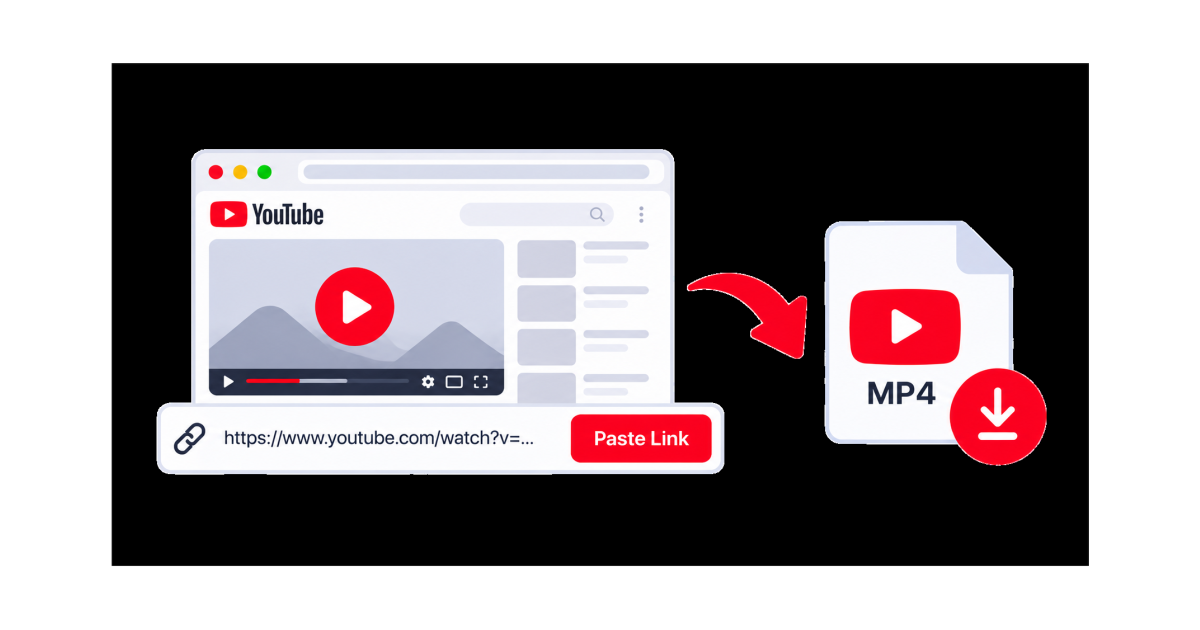
How to Download YouTube Videos from a Link
Downloading a YouTube video from a link can be useful when you want to keep an available video for later use. Instead of searching for the video again, you can copy its URL and use an online video downloader such as SaveTheClip.
In this guide, you’ll learn how to download YouTube videos from a link, how to copy a YouTube URL, how to use SaveTheClip, and how to choose the right video quality.
What You Need
To download a YouTube video by link, you only need:
- A YouTube video
- The video's URL
- A web browser
- An internet connection
- SaveTheClip
You don't need to install a separate application to use SaveTheClip's browser-based YouTube converter.
How to Copy a YouTube Video Link
Before you can download a YouTube video from a link, you need to copy its URL.
On Computer
- Open YouTube.
- Find the video you want to download.
- Open the video.
- Copy the URL from your browser's address bar.
You can also click the Share button below the video and copy the link.
On Android or iPhone
- Open the YouTube app.
- Open the video.
- Tap Share.
- Select Copy link.
You now have the YouTube link ready to use.
How to Download a YouTube Video from a Link
Once you have copied the URL, you can use SaveTheClip to process the video link.
Step 1: Copy the YouTube URL
Open the YouTube video and copy its link using the Share button or your browser's address bar.
Step 2: Open SaveTheClip
Open SaveTheClip in your browser and go to the YouTube converter.
Step 3: Paste the Link
Paste the YouTube video URL into the input field.
Make sure you paste the complete link and that there are no unnecessary spaces or missing characters.
Step 4: Process the Video
Submit the link and let SaveTheClip process the available video information.
Depending on the video, available download options may vary.
Step 5: Choose a Quality
When available, choose the video quality that best fits your needs.
SaveTheClip's YouTube converter supports MP4 downloads up to 4K. Higher-quality video generally provides a sharper image but can also require more storage space and take longer to download.
Step 6: Download the Video
After selecting an available option, click the download button and wait for the file to finish downloading.
The downloaded file can then be accessed from your browser's download location.
YouTube Link Download on Phone
You can also download a YouTube video from a link using your phone.
The basic process is:
- Open YouTube.
- Copy the video link.
- Open SaveTheClip in your mobile browser.
- Paste the YouTube URL.
- Process the link.
- Select an available video option.
- Download the file.
SaveTheClip works on both phones and desktop devices, so you can use the same basic workflow without installing additional software.
How to Download a YouTube Video by Link on a Computer
The process is just as simple on a computer.
Copy the YouTube URL, open SaveTheClip, paste the link into the YouTube converter, and select an available download option.
Downloading from a computer can be convenient when you want to save the file directly to your Downloads folder or move it to another device later.
Can You Download Any YouTube Video from a Link?
Not necessarily.
A YouTube link may not always produce a downloadable result. Availability can depend on the video, its visibility, restrictions, and the source.
Private, removed, restricted, or unavailable videos may not be accessible through a third-party downloader.
If a link doesn't work, make sure the video is publicly accessible and that you copied the correct URL.
What Video Quality Should You Choose?
The best quality depends on what you plan to do with the video.
For example:
- 4K: Best when you want maximum available image quality and have enough storage.
- 1440p: A good high-quality option with less storage than 4K.
- 1080p: A practical choice for most screens and devices.
- 720p: Useful when you want a smaller file while keeping good quality.
- 480p or lower: Better when storage space or download speed is limited.
Higher quality usually means a larger file, so choose the option that matches your needs.
Why Download a YouTube Video from a Link?
There are several reasons people may want to save a video from a YouTube link.
You may want to:
- Keep a video available for personal reference
- Watch content when you have limited internet access
- Save a video you have permission to use
- Keep a copy of your own uploaded content
- Transfer a permitted video to another device
Always make sure you have the right to download and use the content.
What If the YouTube Link Does Not Work?
If your YouTube link isn't recognized, try these steps:
- Check that the URL was copied correctly.
- Open the link in YouTube to make sure the video is still available.
- Remove unnecessary spaces from the URL.
- Try copying the link again using the Share button.
- Refresh SaveTheClip and submit the link again.
- Try another publicly accessible video to determine whether the issue is specific to the source.
If the video is private, removed, or otherwise unavailable, a downloader may not be able to process it.
YouTube Downloads and Copyright
Downloading a video does not automatically give you permission to reuse or redistribute it.
YouTube's official download features can also depend on your location, account, and the video. For example, YouTube offers offline viewing through its own features, while videos uploaded by you can be downloaded through YouTube Studio.
Before downloading or using someone else's content, check the applicable copyright rules and the permissions associated with the video.
Download YouTube Videos with SaveTheClip
SaveTheClip provides a browser-based YouTube converter that lets you start with a YouTube link and select an available video download option.
The process is straightforward:
Copy the YouTube link → Paste it into SaveTheClip → Choose an available option → Download
No separate downloader application is required for the basic browser workflow.
Final Thoughts
Downloading a YouTube video from a link can be a straightforward process when the video is publicly accessible and an available download option is provided.
Simply copy the YouTube URL, paste it into SaveTheClip's YouTube converter, choose the quality that fits your needs, and download the available file.
For the best experience, use a stable internet connection and choose a video quality that gives you the right balance between image quality, download speed, and storage space.